Home
Overview
The home app is the first app available on your
desktop.
It gives you access to
any
davinci pages
you may have created as well as any files you have uploaded up onto the server.
Demos
Home Demo
demonstrates the basic functionaliy of the home app.
Configurations
Configurations are saved lists of apps that are loaded together into your desktop. You can create or edit configurations
using the
profile app.
You can open any of your saved configurations by selecting the desired configuration from the configuration drop down.
The click the open button. The configuration will be opened in a new tab in your browser.
User Content
The home app gives you access to content that you have created or uploaded to the davinci servers.
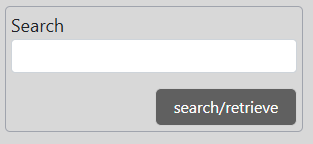
Saved user content is accessible by clicking the search/retrieve button. This will display your saved content (on the davinci server)
as a list in the center pane of the home app. You can narrow your search of your saved content by entering some search terms before
clicking the search/retrieve button.
- Projects
When a user interacts with the apps in their desktop, they can create or edit content in each app. As an example, they
may download some data which is then charted in the chart app. You can save the current state of the desktop, with
all the desktop data and edited content as a saved project.
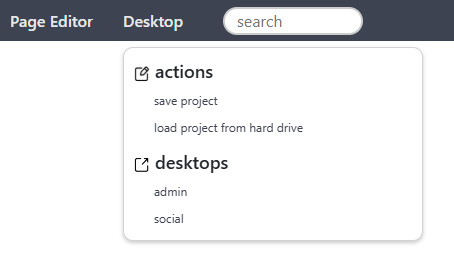
To save your current desktop, click the save project link in the desktop drop down. The save dialog window will be opened.
You can choose to save the desktop up to the davinci server, where it will accessible from your home app. Alternatively,
you can save your desktop as a file to your local harddrive.
- Davinci Pages
are web pages hosted on the davinci platform that you can create and manage, including managing the permissions
of who can view any page you create. You can create a new page by clicking the new page button, which will
open the
page editor
in a new tab.
- Media
- is any content that exists in a file, such as images or video, but can include data as a json or a csv file.
To upload new data to the desktop, click the search/retrieve button. This will display a listing of your saved content.
Click the choose file button. Then select a file and click upload. If you wish to replace an uploaded file, check the
checkbox next to the desired file, and then click replace instead of upload after choosing the file.
- HTML, javascript and CSS
- content that is created using the
HTML app
that includes
- HTML pages
- Javascript files, including .js files and .mjs files (modules)
- CSS Style Sheets
Document Options
When you click on a link for a item in your Home app, a set of options will open up, based on the type of item.
- Desktops
- Name
- change the name of the desktop
- Load
- loads the elements of the saved desktop to the current desktop
- Open
- opens the saved desktop in a new tab
- Documents
- Name
- change the name of the document
- Media
- (for davinci pages only)
opens a dialog window that lists the media attached to the page
- Permissions
- lets you change the permissions of who can view the document
- Path
- opens the document in a new tab, using the path based URL
- View
- opens the document in a new tab, using the guid based URL
Saving/Loading
After you have creating items or documents within your desktop, you can save the desktop by clicking
the save button. You will be presented with save options.
- Save
- this saves the desktop to the davinci cloud. If the desktop was loaded from the cloud and edited, this will overwrite the
old version.
- Save New
- this saves a new copy of the desktop to the davinci cloud. This will not overwrite the old copy of the desktop, if
it exists.
- Save to File
- will save the desktop as a file on your local hard drive.
The load button will load the elements of a desktop from a saved file. To load desktops from the cloud,
use the search and retrieve method above to find the desktop, then click the open or load links.

