Overview
The page editor is an app that gives you the ability to build web pages and interactive reports and dashboards. It is accessible from the home app, by clicking the "new page" button.
When you first open the page editor, you are presented with a blank canvas on which to create place page components.
Video Demos
Page Editor
Introduces the page editor which is used to create and publish web pages.
Toolboxes
Control Box
Basic functionality of the page control box.
Toolboxes
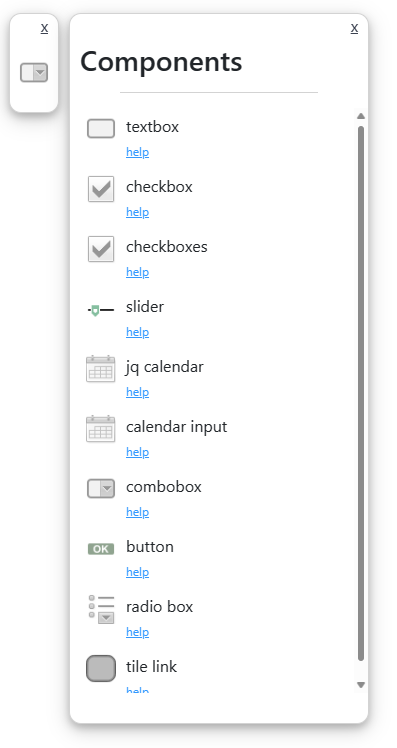 Toolboxes
contain the components that you will add to a page. Toolboxes are accessibly by clicking the
right mouse button. This will open a little menu box. Click the menu box to open the list of
components in the toolbox. You can add a new component simply by clicking the name or icon of the
component in the toolbox.
Toolboxes
contain the components that you will add to a page. Toolboxes are accessibly by clicking the
right mouse button. This will open a little menu box. Click the menu box to open the list of
components in the toolbox. You can add a new component simply by clicking the name or icon of the
component in the toolbox. For more detailed information about components, please see the components corner
Control Panel
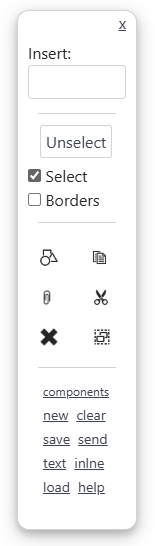 The control panel is a little panel, initially placed on the right side of the page canvas. It contains controls for configuring
how you edit your page.
The control panel is a little panel, initially placed on the right side of the page canvas. It contains controls for configuring
how you edit your page.
At the bottom half of the control panel is a section of buttons.
- encapsulate :
- copy :
- paste
- cut
- delete
- select parent
- components
- new - opens a new page editor in a new tab
- clear - clears the current page
- save - opens the save page dialog
- send - send a copy of the current page to another user
- load - load a page from your hard drive
Saved Pages
Pages can be saved up to the davinci server, or to your local hard drive. The format of the saved page is JSON data that specifies the components in the page. The contents of a saved page file can be inspected and changed.
There is a limit to the size that a page saved on the davinci server can be. In general, this is only an issue if the page contains embedded data, in which case, the size of the data becomes the limiting factor. As a general rule, it is better to link data into a page instead of embedding. (For example, embedded data has size limitations and also bypasses the data security framework.)