Visual Studio Integration
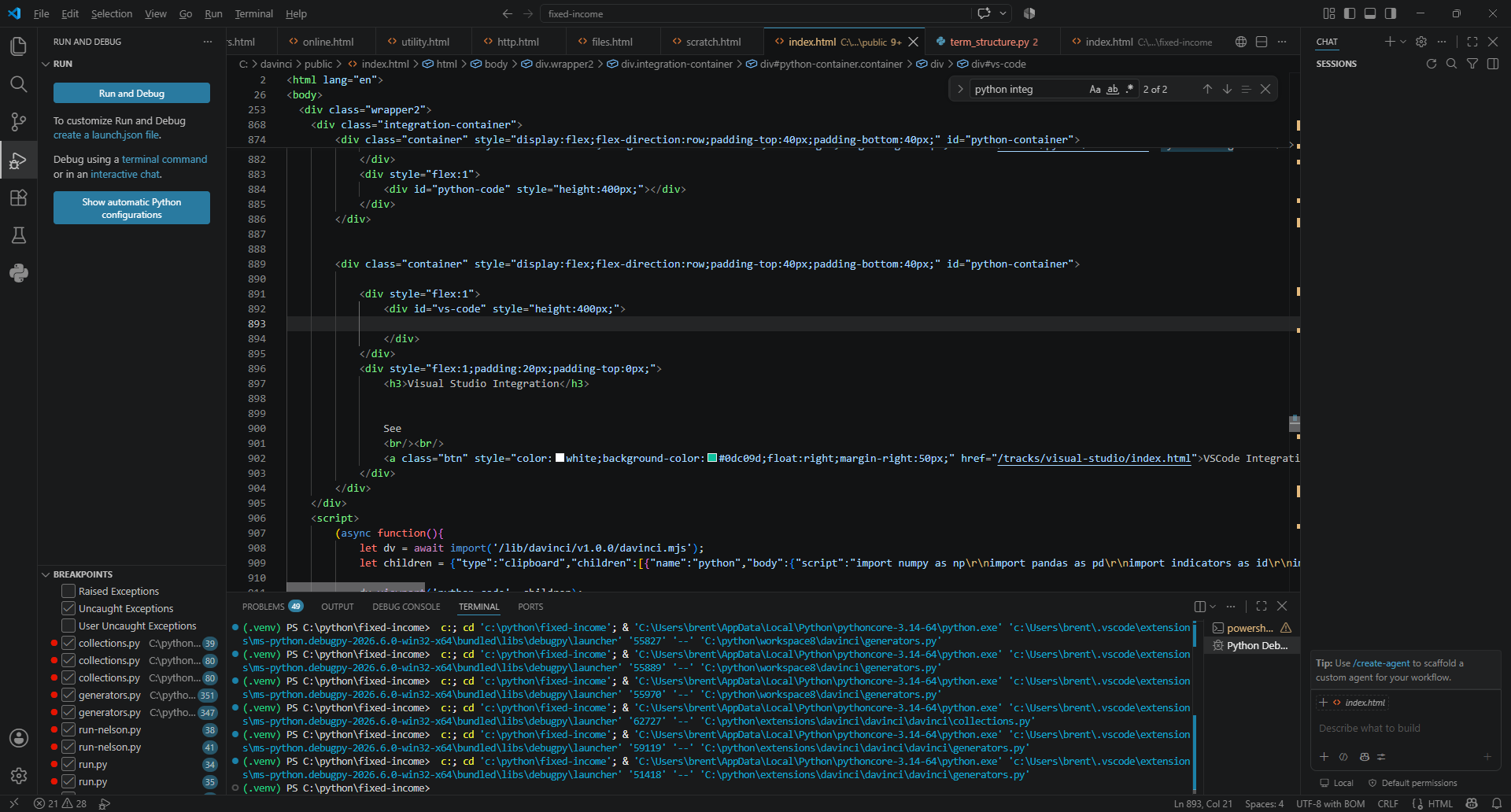 The davinci platform provides integration with VSCode through the
davinci extension.
The davinci platform provides integration with VSCode through the
davinci extension.
Overview
The davinci platform provides integration with VSCode through the
davinci extension.
Installing
- Installing from Marketplace - davinci will host the extension on the visual studio marketplace after it has graduated from beta status.
- Installing from File - the lastest extension file can be found here. (right click and save to your hard drive.) To install from the file, slick the extensions icon on the left of your VSCode IDE. Then click the three little dots at the top. Choose "install from VSIX". Then select the downloaded davinci vsix file.
Configuring
Some functionality in the davinci extension can be configured by setting up a .env file. In particular, many data libraries may utilize the file to configure its caching behaviour. The extension can run without a .env file. Check the documentation for any library you are using for configuration specific to that library.Visual Studio Commands
Visual studio commands are fucntionality that is accessed by clicking ctrl-shift-p. A list of commands is displayed at the top menu bar. Selecting a command will run the command.For a list of commands availaibe with the davinci extension, see Davinci VSCode Commands
Coding
The davinci platform provides tools and libraries for building and analytics and for sharing those analyses across the network. The following languages have tools and apps on the platform.- Scripting
- Python - the primary language used to create analytics and machine leanring. Python developed on the davinci platform can be shared and embedded in web pages and messaging.
- Javascript
- Documents
- HTML
- connect to data in the desktop and dynamically visualize the relationships.
- Dashboards - demonstrates creating dynamic online dashboards and terminals.
- Latex create automated documentation.
- HTML
- connect to data in the desktop and dynamically visualize the relationships.
Additional language plugins are under review.
Data
A key element of building models and analytics is data. The davinci workspace is built around managing, tracking and visualizing data. Fetuares include:- Data can be saved locally
- Data generated from a script can be easily made available to other scripts
- Data in your workspace can easilty be bound to charts, graphs and other viusaliziations.
For more details: see data
Sharing
sharingFunctionality Tree
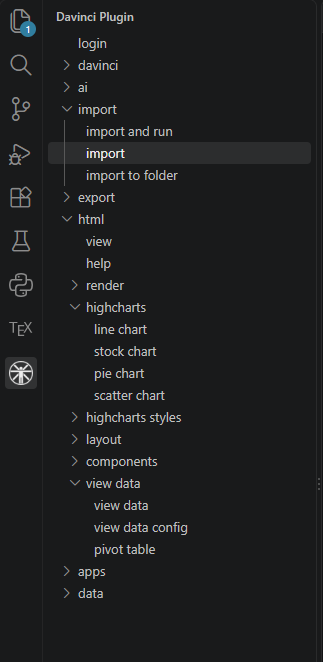 After the davinci extension has been installed in VSCode, the davinci
functionality is accessible from a navigation tree from the left side of
your vscode workspace.
After the davinci extension has been installed in VSCode, the davinci
functionality is accessible from a navigation tree from the left side of
your vscode workspace.
- Login - login to the davinci server, if you wish to access account specific utilities.
- Davinci
- HTML
- View
- Render
- Highcharts
- Layout
- Components
- View Data
- AI
- ai chat - converse with an AI model about your code or davinci project
- configuration - configure different ai models for future use
- Import
- Import and Run
- Import
- import to folder
- Export
- Latex
- Apps
- Data